Product Deployment
With multi-stack products like microservices architectures with 10+ stacks, each stack previously had to be deployed individually. Product Deployment rolls out the entire product in one operation — with shared variables, progress tracking, and coordinated lifecycle management.
Overview
Section titled “Overview”| Aspect | Single Stack Deployment | Product Deployment |
|---|---|---|
| Deploy | One stack per operation | All stacks of a product at once |
| Variables | Configure per stack individually | Shared Variables once, then per stack |
| Progress | One stack with its own session | One SessionId, N stacks with overall progress |
| Status | No aggregated status | ProductDeploymentStatus with state machine |
| Error Handling | Stack-individual | ContinueOnError — continue on partial failures |
Step by Step: Deploy a Product
Section titled “Step by Step: Deploy a Product”This guide walks you through the complete workflow for deploying a multi-stack product via the web interface.
Step 1: Find the Product in the Catalog
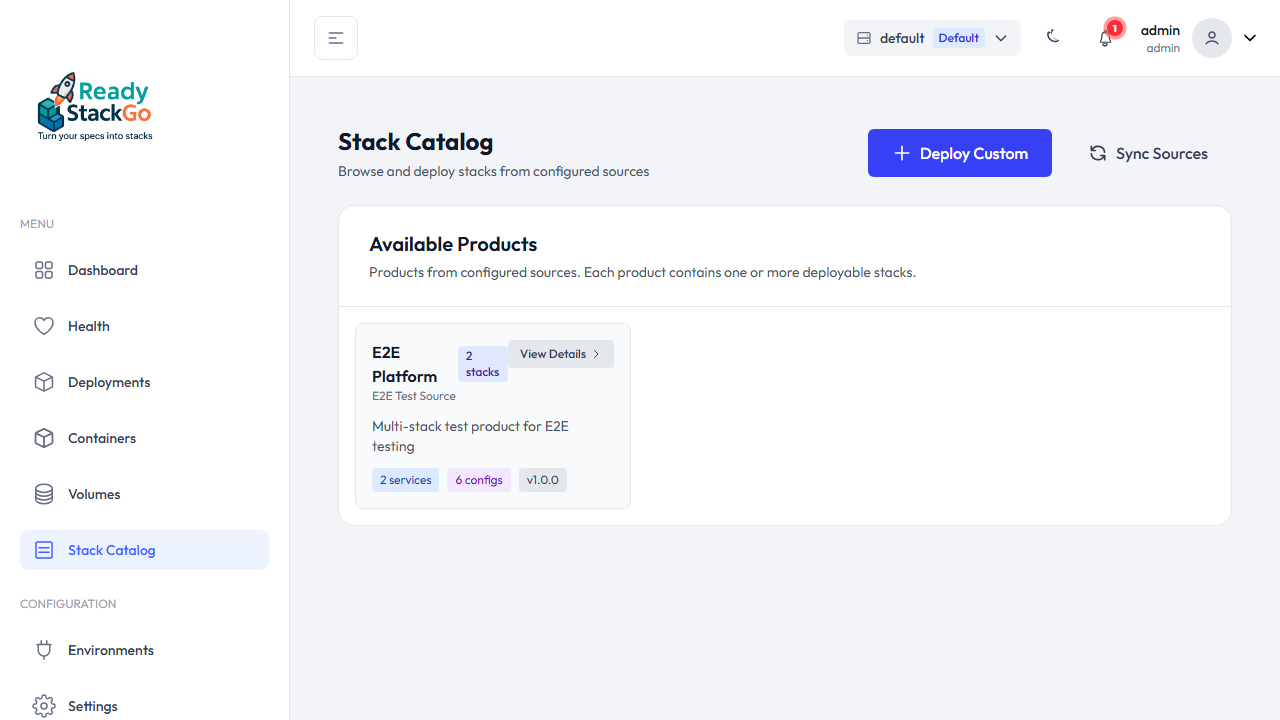
Section titled “Step 1: Find the Product in the Catalog”Navigate to the Stack Catalog. Multi-stack products are displayed with a badge showing the number of included stacks (e.g., “2 stacks”).
Step 2: View Product Details
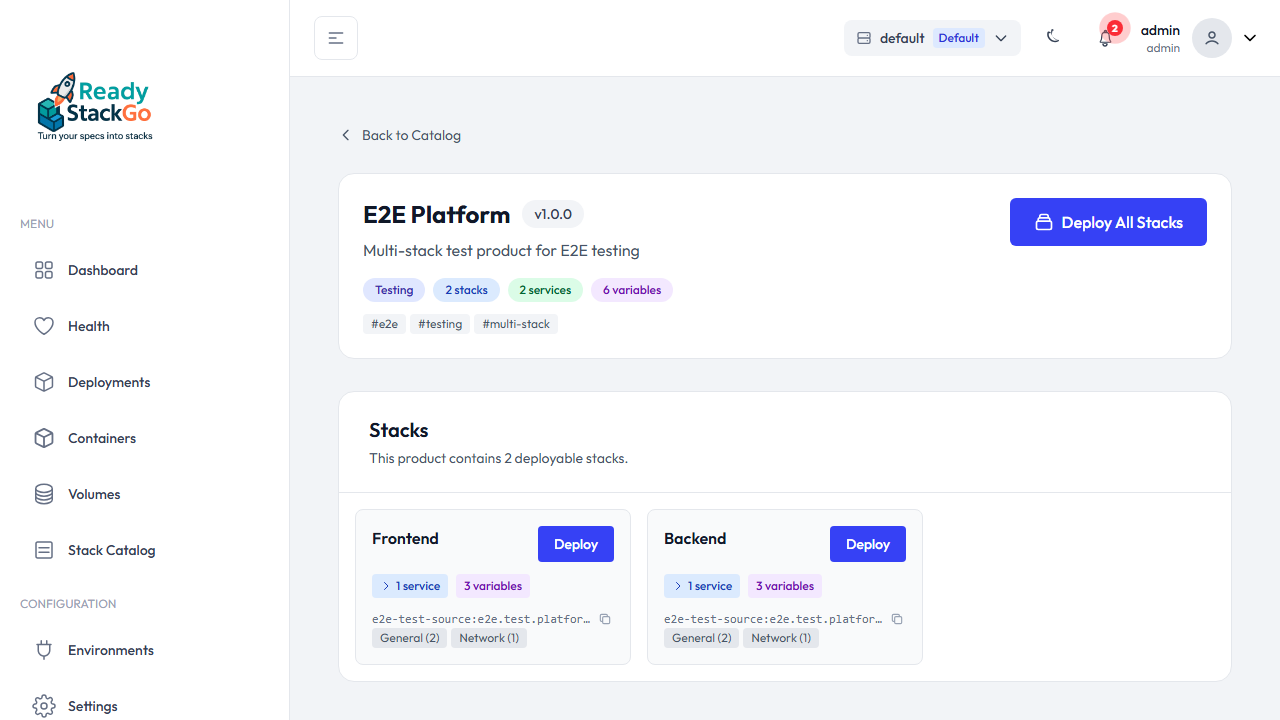
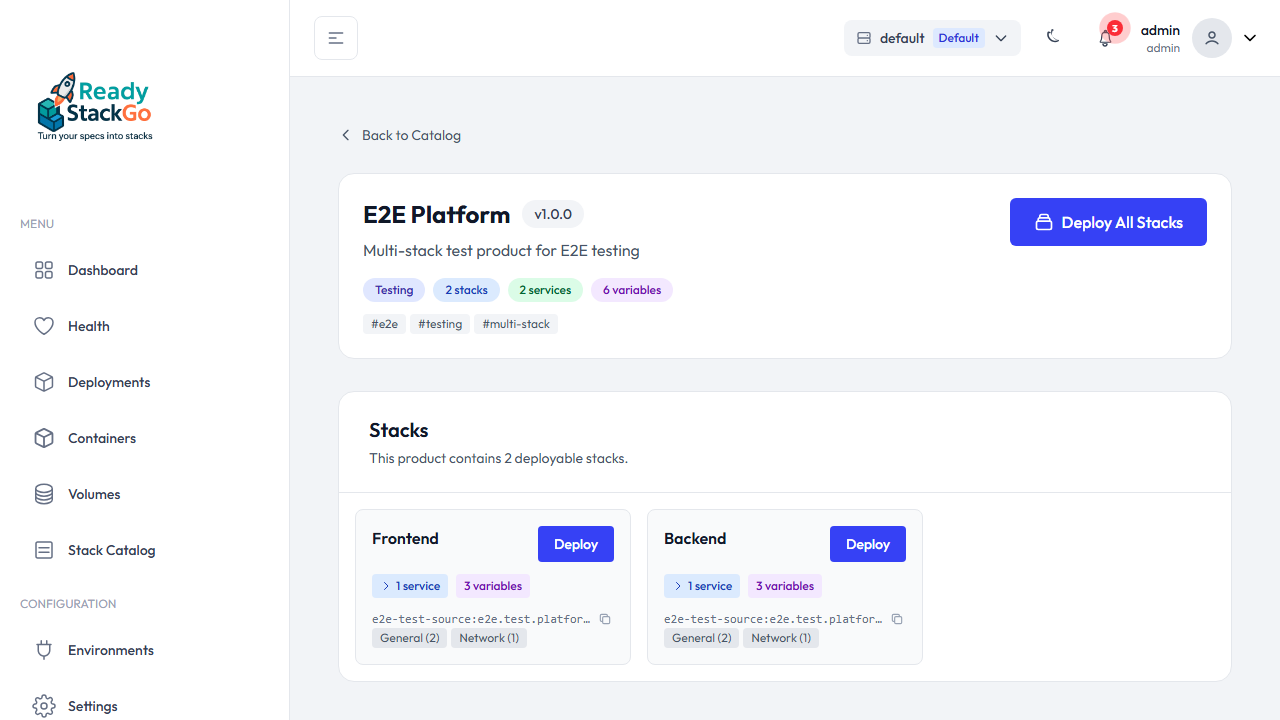
Section titled “Step 2: View Product Details”Click View Details to open the product detail page. Here you can see all included stacks with their descriptions and the Deploy All button.
Step 3: Configure the Deployment
Section titled “Step 3: Configure the Deployment”After clicking Deploy All, you reach the configuration page. Here you configure:
- Shared Variables — Values passed to all stacks (e.g., log level, database host)
- Stack Configuration — Per-stack variables can be customized individually (accordion view)
- Continue on Error — Determines whether remaining stacks are deployed even if one fails

The sidebar shows a summary with Product Info and the Deploy All Stacks button.
Step 4: Track Deployment Progress (Split-View)
Section titled “Step 4: Track Deployment Progress (Split-View)”After clicking Deploy All Stacks, the view switches to split-view mode:
- Left: Compact stack list with real-time status indicators (Pending, Deploying, Running, Failed)
- Right: Detailed progress panel for the selected stack — progress bar, service counters, init container logs
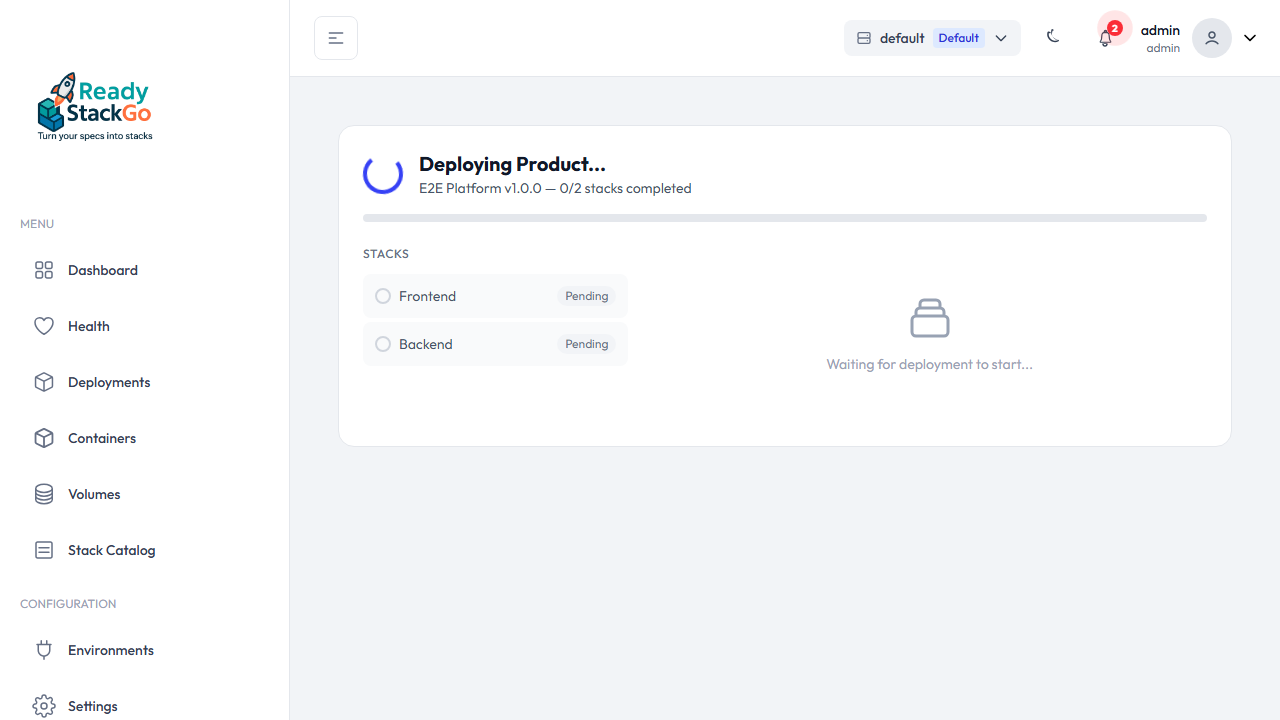
Stacks are deployed sequentially. The currently running stack is selected automatically. You can click on any stack at any time to inspect its progress or result.
Step 5: Review the Result
Section titled “Step 5: Review the Result”After deployment completes, the result is displayed — either Product Deployed Successfully or Deployment Failed with per-stack details.
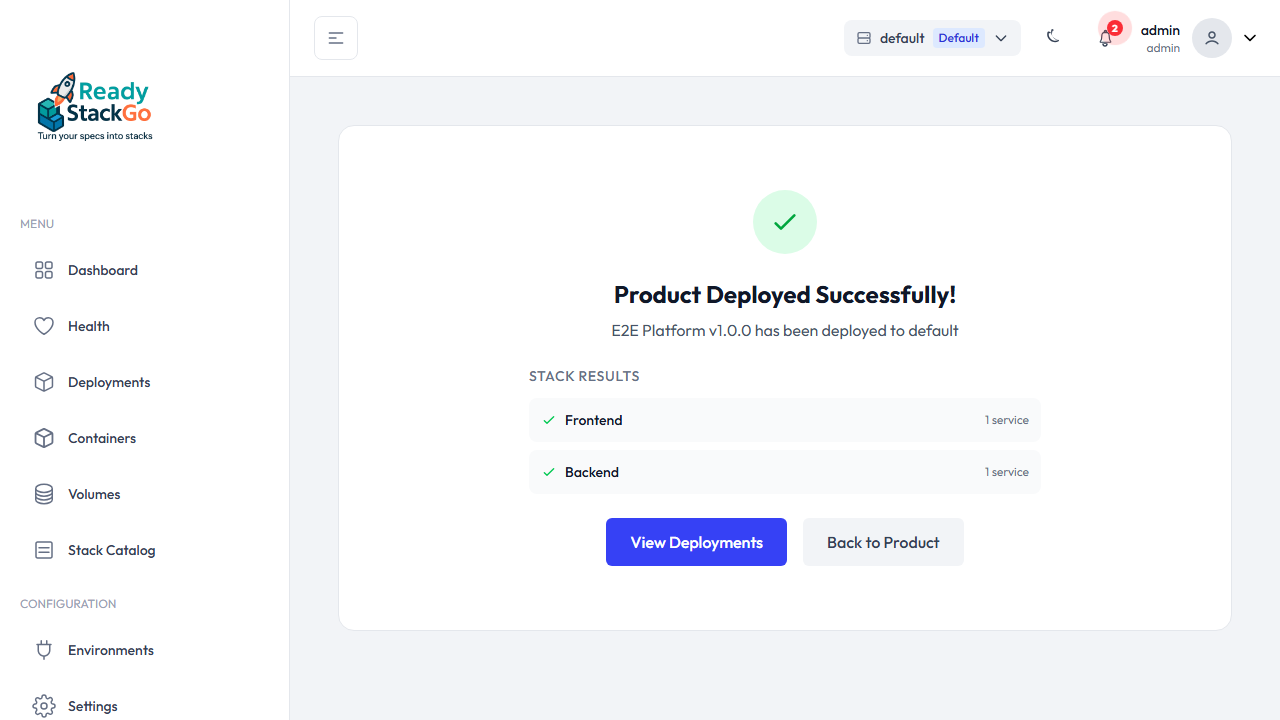
From here you can navigate directly to the Deployments page.
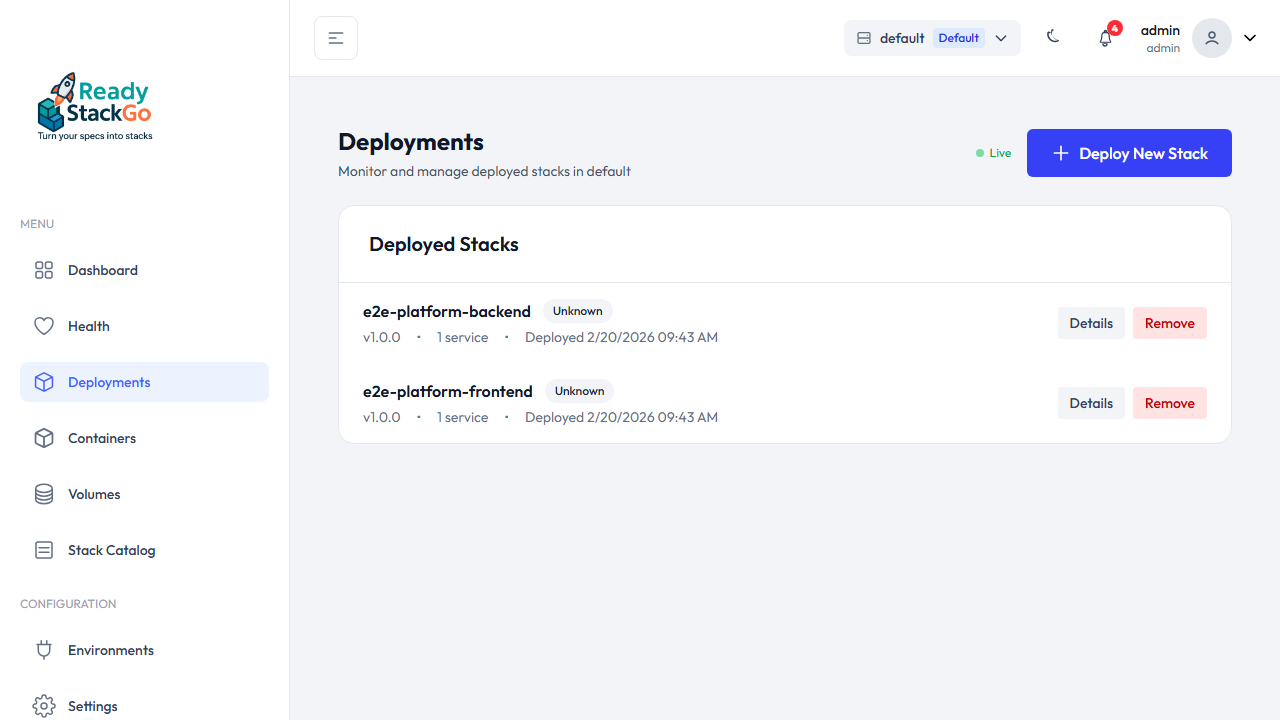
Step 6: Manage Deployments
Section titled “Step 6: Manage Deployments”On the Deployments page, the individual stack deployments of the product appear. Each stack can be managed separately (logs, redeploy, etc.).
Step 7: Status on the Product Detail Page
Section titled “Step 7: Status on the Product Detail Page”When you return to the catalog and open the product detail page again, you’ll see the Deployment Status for each individual stack — including health checks.
Container Control: Stop & Restart
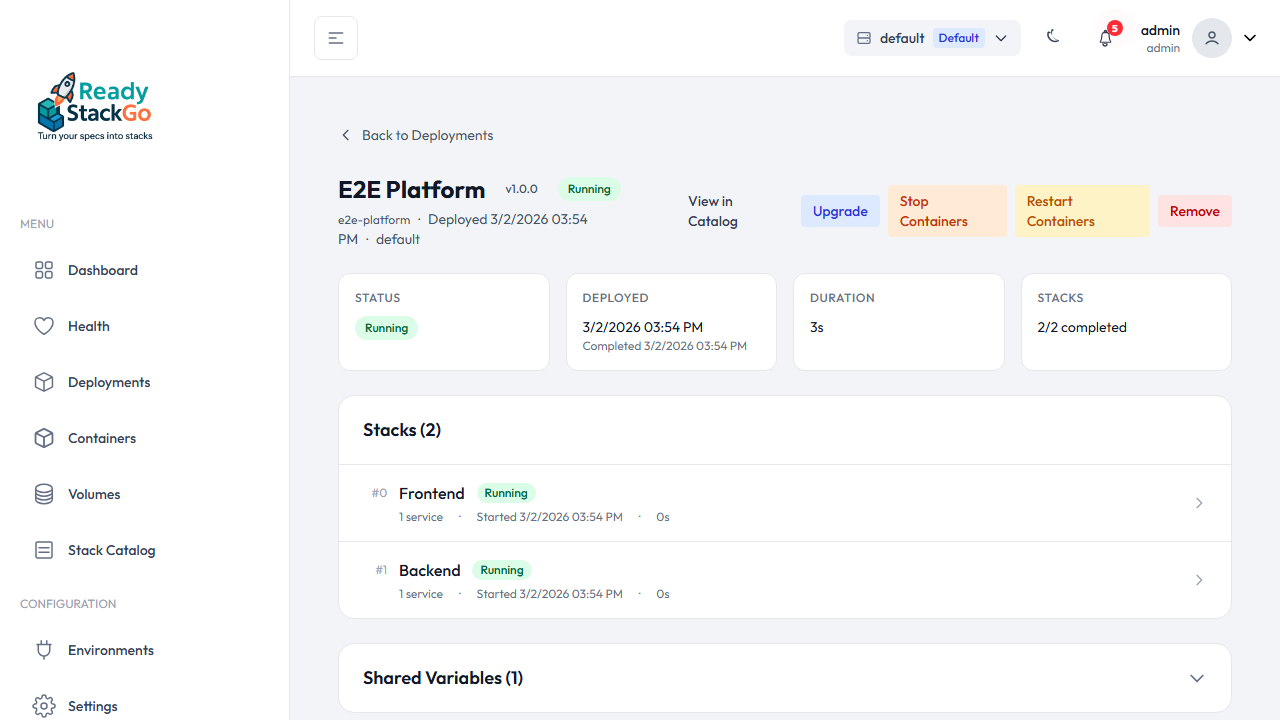
Section titled “Container Control: Stop & Restart”Running Product Deployments can be stopped and restarted from the detail page. When stopping, the deployment transitions to Stopped status — both at the product and stack level. This is useful for maintenance windows, debugging, or temporarily freeing up resources.
Stop & Restart Links
Section titled “Stop & Restart Links”On the Product Deployment detail page, operational deployments (status Running or PartiallyRunning) display the Stop Containers and Restart Containers links. For stopped deployments (status Stopped), only Restart Containers is available.
Stopping Containers
Section titled “Stopping Containers”Click Stop Containers to navigate to the confirmation page. All stacks that will be stopped are listed.
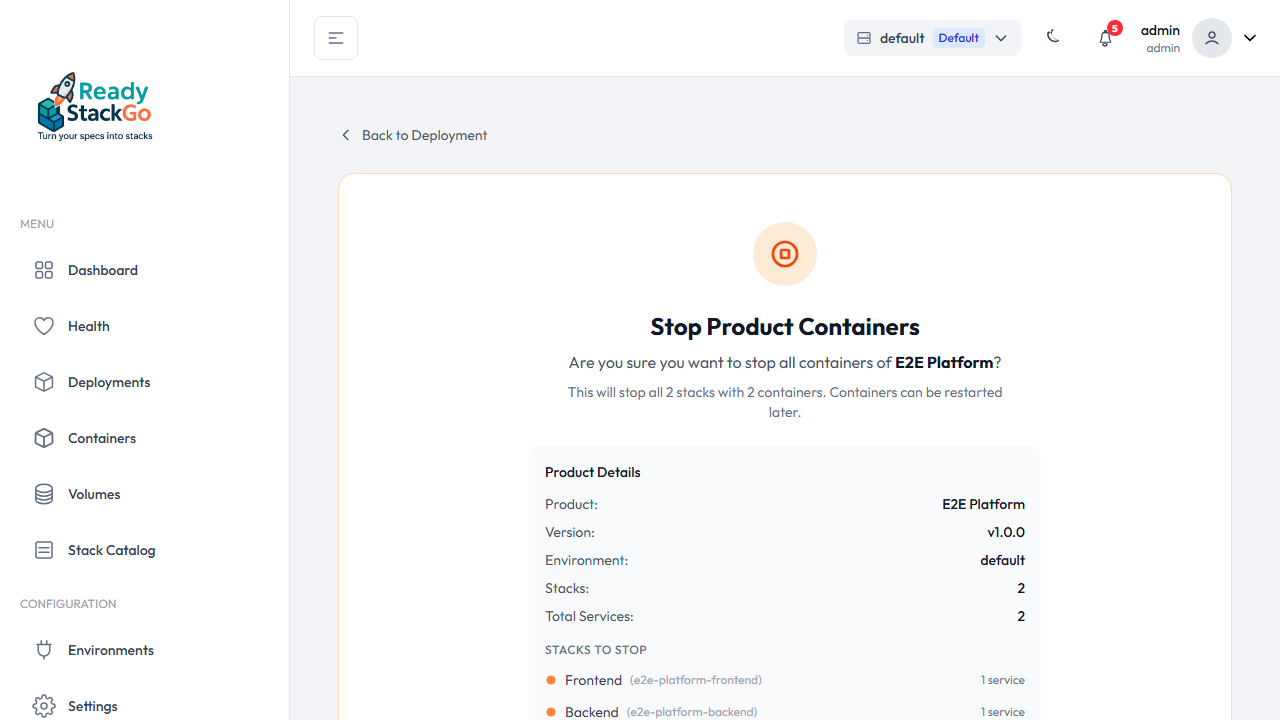
After confirmation, the operation is executed. A loading indicator shows progress.
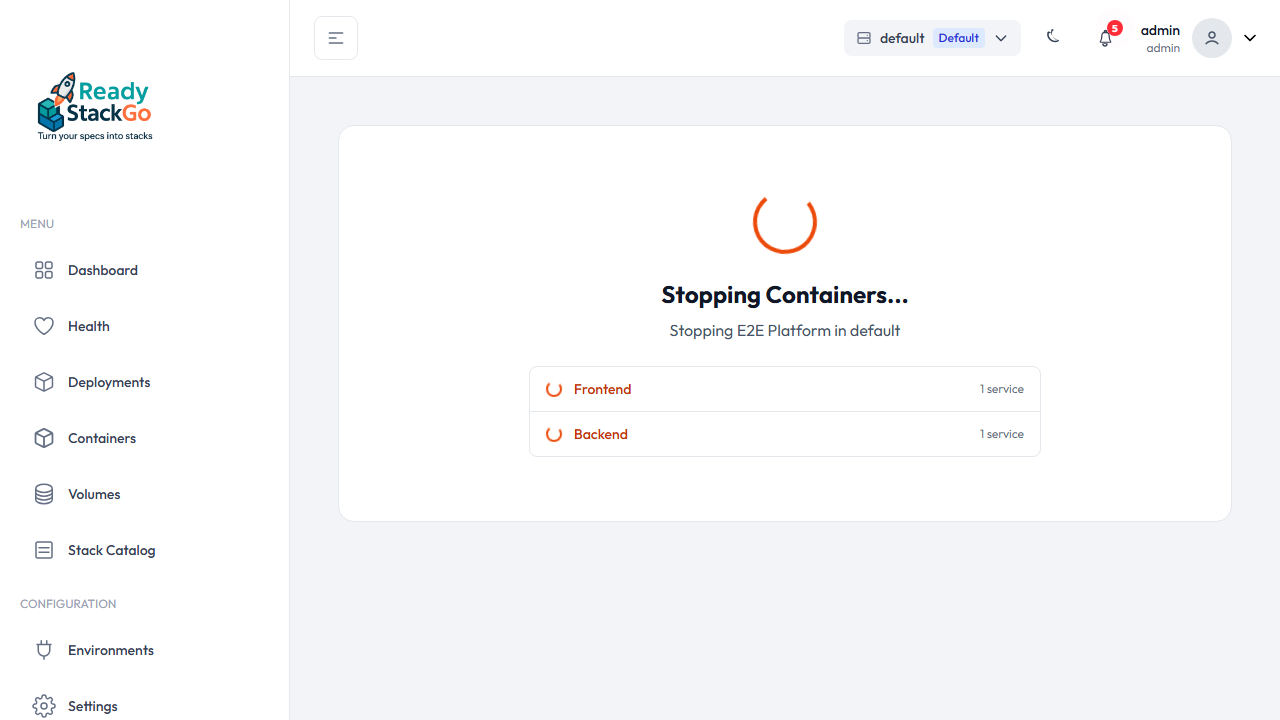
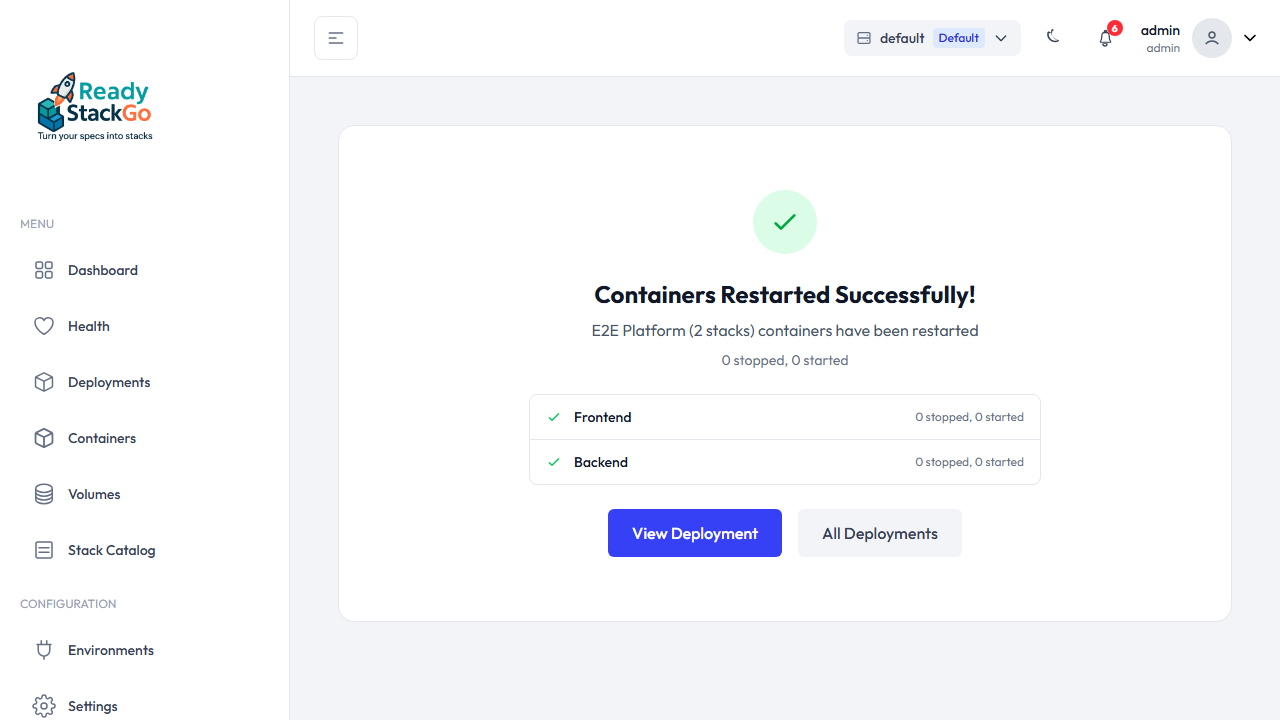
The result is displayed as a feedback page — green for success, red for errors.
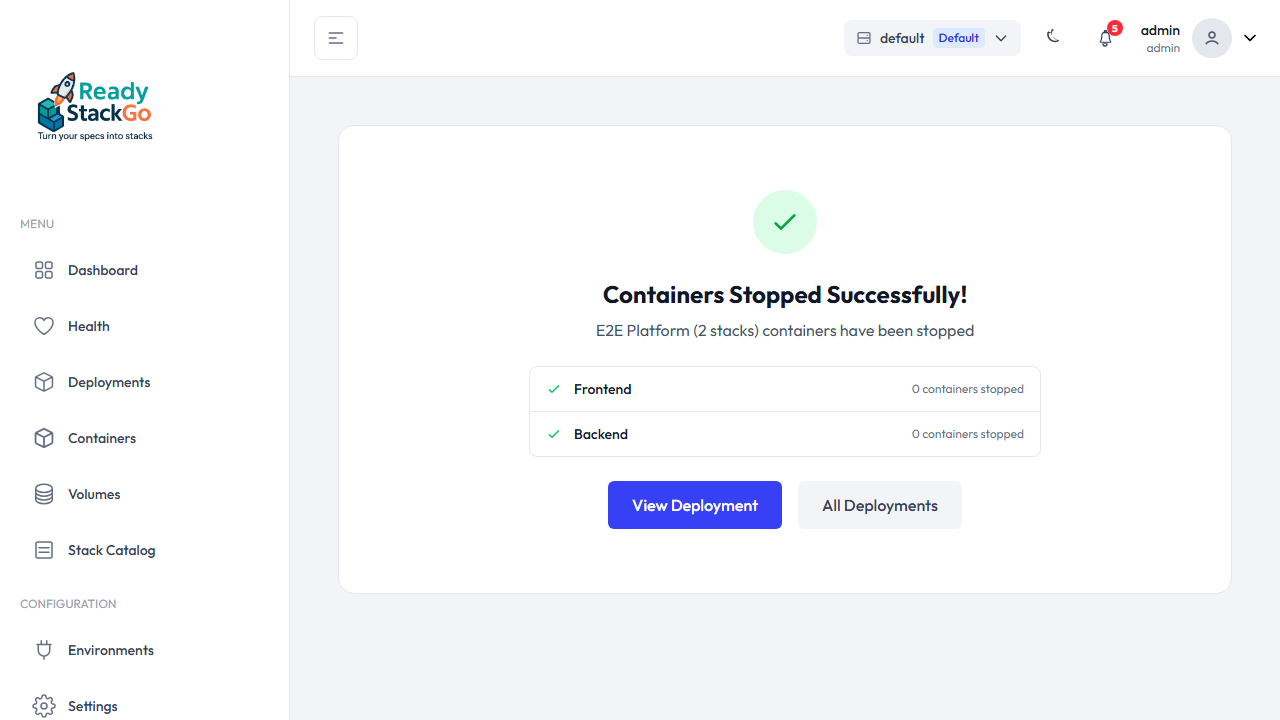
Stopped Status
Section titled “Stopped Status”After successfully stopping, the Product Deployment transitions to Stopped status. On the detail page, both the product and all stacks display an orange Stopped badge.
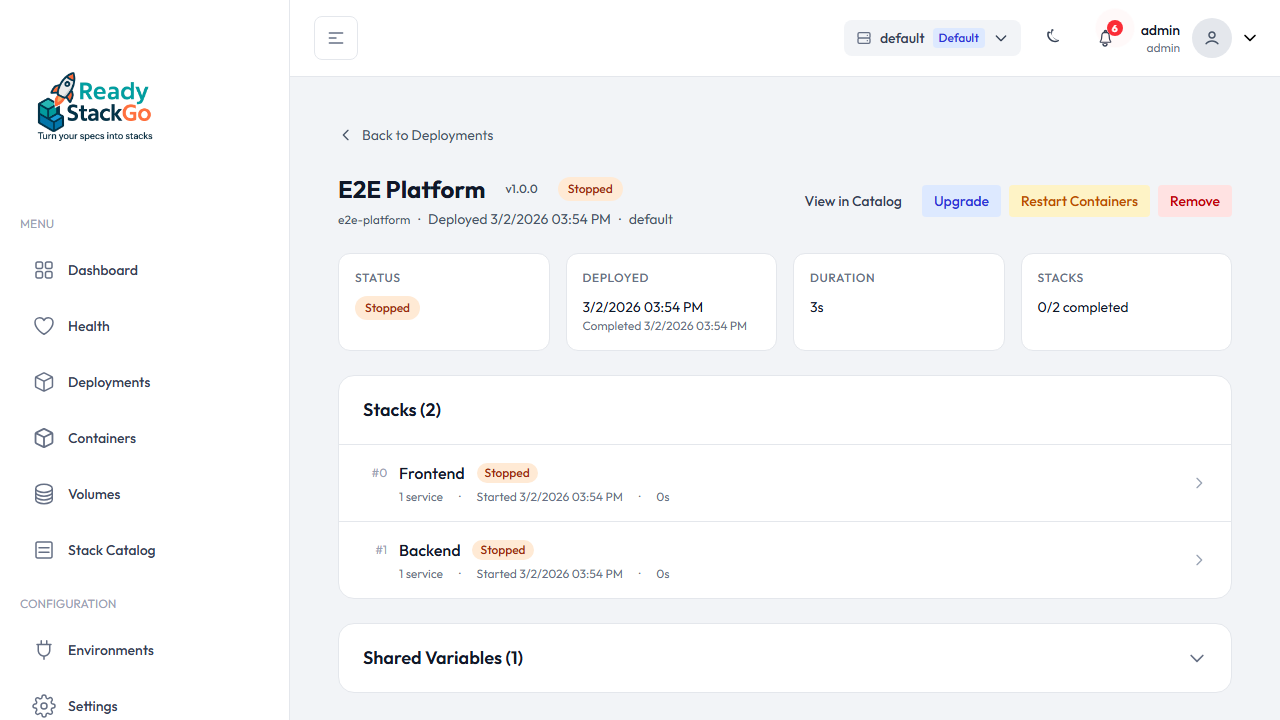
In Stopped status, the following actions are available:
- Restart Containers — start containers again, transitions back to
Running - Upgrade — upgrade to a new version
- Remove — remove the deployment
Restarting Containers
Section titled “Restarting Containers”Click Restart Containers to sequentially stop and then start all containers. This works for both running and stopped deployments.
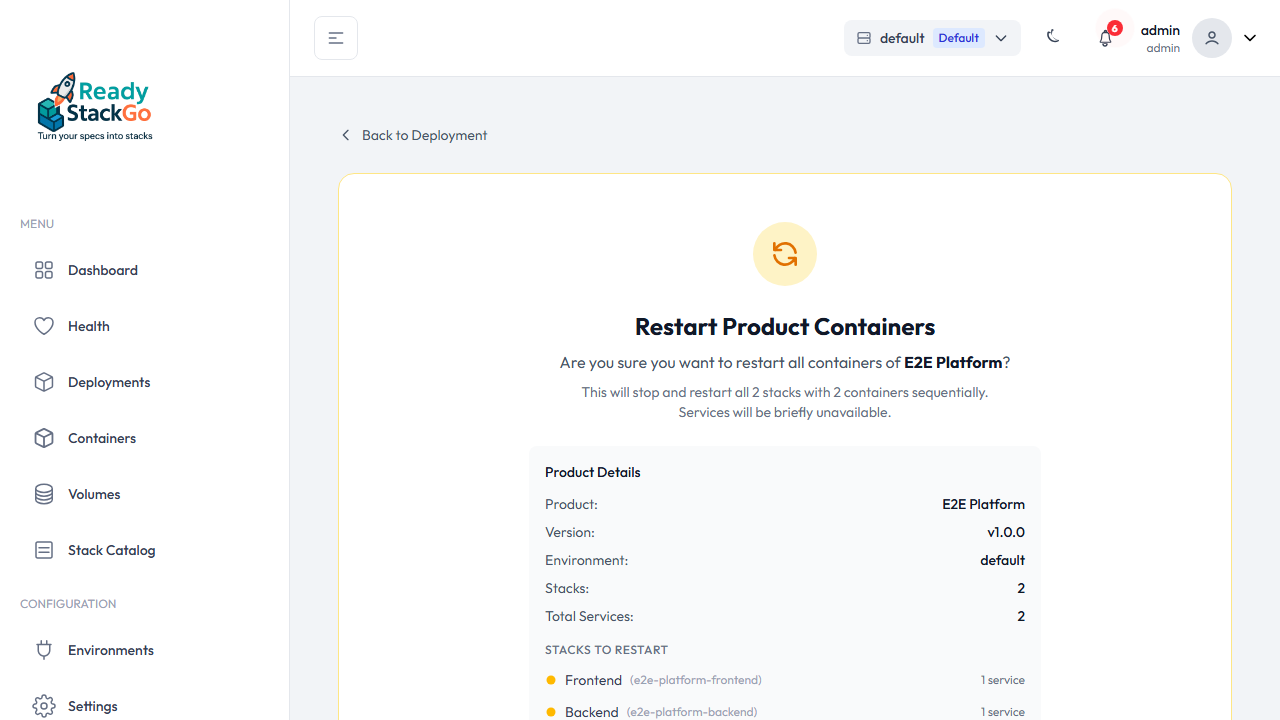
After completion, the result page shows the status. When restarting from Stopped status, the deployment transitions back to Running (or PartiallyRunning on partial success).
Container Control via Hook
Section titled “Container Control via Hook”Containers can also be controlled via the Hook API — ideal for CI/CD pipelines or external automation tools.
Stop: POST /api/hooks/stop-containers
Restart: POST /api/hooks/restart-containers
| Field | Type | Required | Description |
|---|---|---|---|
productId | string | Yes | Product Group ID (e.g., e2e.test.platform) |
stackDefinitionName | string | No | Filter to a single stack (e.g., frontend) |
environmentId | string | No | Environment ID (fallback: API Key env_id claim) |
Permissions: Hooks.StopContainers and Hooks.RestartContainers respectively
# Stop all containers of a productcurl -X POST http://localhost:8080/api/hooks/stop-containers \  -H "X-Api-Key: your-api-key" \  -H "Content-Type: application/json" \  -d '{"productId": "e2e.test.platform"}'
# Restart a single stackcurl -X POST http://localhost:8080/api/hooks/restart-containers \  -H "X-Api-Key: your-api-key" \  -H "Content-Type: application/json" \  -d '{"productId": "e2e.test.platform", "stackDefinitionName": "frontend"}'
Concept: Two-Level Architecture
Section titled “Concept: Two-Level Architecture”Product Deployment operates on two levels:
- ProductDeployment (Aggregate Root) — coordinates all stacks, tracks overall status
- Deployment (per stack) — existing stack deployment logic with container operations
┌─────────────────────────────────────────────┐│ ProductDeployment ││ Status: Running │ Version: 3.1.0 ││ ││ ┌─ Stack: infrastructure (Order: 0) ───┐ ││ │ Status: Running │──→ Deployment (infra-stack)│ └──────────────────────────────────────┘ ││ ││ ┌─ Stack: identity-access (Order: 1) ──┐ ││ │ Status: Running │──→ Deployment (identity-stack)│ └──────────────────────────────────────┘ ││ ││ ┌─ Stack: business (Order: 2) ─────────┐ ││ │ Status: Running │──→ Deployment (business-stack)│ └──────────────────────────────────────┘ │└─────────────────────────────────────────────┘Stacks are deployed sequentially in manifest order — this respects dependencies between stacks (e.g., database before application server).
Status Lifecycle
Section titled “Status Lifecycle”Product Deployments transition through these statuses:
Deploying ──→ Running              (all stacks successful)          ──→ PartiallyRunning     (some stacks failed)          ──→ Failed               (all stacks failed)
Running ──→ Upgrading ──→ Running / PartiallyRunning / Failed        ──→ Removing  ──→ Removed (terminal)        ──→ Stopped   ──→ Running (restart successful)                      ──→ PartiallyRunning (restart partial)                      ──→ Removing / Upgrading
PartiallyRunning ──→ Stopped (stop containers)
Failed ──→ Upgrading (retry with new version) ──→ Removing (cleanup)| Status | Meaning |
|---|---|
Deploying | Deployment in progress, stacks being rolled out sequentially |
Running | All stacks successfully deployed and active |
PartiallyRunning | Some stacks running, others failed |
Stopped | All containers deliberately stopped (via Stop Containers) |
Failed | Deployment completely failed |
Upgrading | Upgrade to a new version in progress |
Removing | All stacks being removed |
Removed | All stacks removed (terminal state) |
Variable Configuration
Section titled “Variable Configuration”Product Deployment supports a three-tier variable system:
- Stack Defaults — default values defined in the stack definition
- Shared Variables — product-wide variables (e.g., database host)
- Per-Stack Overrides — stack-specific overrides
Priority (ascending): Stack Defaults → Shared Variables → Per-Stack Overrides.
API Endpoints
Section titled “API Endpoints”POST /api/environments/{environmentId}/product-deployments
Section titled “POST /api/environments/{environmentId}/product-deployments”Starts a new Product Deployment. All stacks of the product are deployed sequentially.
Permission: Deployments.Create
Request:
| Field | Type | Required | Description |
|---|---|---|---|
productId | string | Yes | Product ID from the catalog (e.g., stacks:myproduct:1.0.0) |
stackConfigs | array | Yes | Configuration for each stack |
stackConfigs[].stackId | string | Yes | Stack ID from the catalog |
stackConfigs[].deploymentStackName | string | Yes | Name for the deployment |
stackConfigs[].variables | object | No | Stack-specific variables |
sharedVariables | object | No | Product-wide shared variables |
sessionId | string | No | Client-generated session ID for SignalR tracking |
continueOnError | boolean | No | Continue on error (default: true) |
{ "productId": "stacks:ams.project:3.1.0", "stackConfigs": [ { "stackId": "stacks:ams.project:infrastructure:3.1.0", "deploymentStackName": "ams-infra", "variables": { "DB_PASSWORD": "secret123" } }, { "stackId": "stacks:ams.project:identity:3.1.0", "deploymentStackName": "ams-identity", "variables": {} }, { "stackId": "stacks:ams.project:business:3.1.0", "deploymentStackName": "ams-business", "variables": {} } ], "sharedVariables": { "DB_HOST": "postgres.local", "REDIS_URL": "redis://cache:6379" }, "continueOnError": true}Response (200):
{ "success": true, "productDeploymentId": "a1b2c3d4-...", "productName": "ams.project", "productVersion": "3.1.0", "status": "Running", "sessionId": "product-ams.project-20260217120000000", "stackResults": [ { "stackName": "infrastructure", "stackDisplayName": "Infrastructure", "success": true, "deploymentId": "d1e2f3...", "deploymentStackName": "ams-infra", "serviceCount": 3 }, { "stackName": "identity", "stackDisplayName": "Identity Access", "success": true, "deploymentId": "g4h5i6...", "deploymentStackName": "ams-identity", "serviceCount": 2 } ]}Error Response (400) — Product not found:
{ "success": false, "message": "Product 'nonexistent:product:1.0.0' not found in catalog."}GET /api/environments/{environmentId}/product-deployments
Section titled “GET /api/environments/{environmentId}/product-deployments”Lists all Product Deployments in an environment (excluding Removed).
Permission: Deployments.Read
Response (200):
{ "success": true, "productDeployments": [ { "productDeploymentId": "a1b2c3d4-...", "productGroupId": "stacks:ams.project", "productName": "ams.project", "productDisplayName": "AMS Project", "productVersion": "3.1.0", "status": "Running", "createdAt": "2026-02-17T12:00:00Z", "completedAt": "2026-02-17T12:05:30Z", "totalStacks": 3, "completedStacks": 3, "failedStacks": 0, "canUpgrade": true, "canRemove": true } ]}GET /api/environments/{environmentId}/product-deployments/{id}
Section titled “GET /api/environments/{environmentId}/product-deployments/{id}”Returns a specific Product Deployment with full stack details.
Permission: Deployments.Read
Response (200):
{ "productDeploymentId": "a1b2c3d4-...", "environmentId": "env-123", "productGroupId": "stacks:ams.project", "productId": "stacks:ams.project:3.1.0", "productName": "ams.project", "productDisplayName": "AMS Project", "productVersion": "3.1.0", "status": "Running", "createdAt": "2026-02-17T12:00:00Z", "completedAt": "2026-02-17T12:05:30Z", "continueOnError": true, "totalStacks": 3, "completedStacks": 3, "failedStacks": 0, "upgradeCount": 0, "canUpgrade": true, "canRemove": true, "durationSeconds": 330.5, "stacks": [ { "stackName": "infrastructure", "stackDisplayName": "Infrastructure", "stackId": "stacks:ams.project:infrastructure:3.1.0", "deploymentId": "d1e2f3...", "deploymentStackName": "ams-infra", "status": "Running", "startedAt": "2026-02-17T12:00:01Z", "completedAt": "2026-02-17T12:02:15Z", "order": 0, "serviceCount": 3, "isNewInUpgrade": false } ], "sharedVariables": { "DB_HOST": "postgres.local", "REDIS_URL": "redis://cache:6379" }}GET /api/environments/{environmentId}/product-deployments/by-product/{groupId}
Section titled “GET /api/environments/{environmentId}/product-deployments/by-product/{groupId}”Returns the active Product Deployment for a specific Product Group.
Permission: Deployments.Read
The response has the same format as GET .../{id}.
POST /api/environments/{environmentId}/product-deployments/{id}/upgrade
Section titled “POST /api/environments/{environmentId}/product-deployments/{id}/upgrade”Upgrades a running Product Deployment to a new version. All stacks are upgraded sequentially with variable merging from the existing deployment.
Permission: Deployments.Write
Request:
| Field | Type | Required | Description |
|---|---|---|---|
targetProductId | string | Yes | Product ID of the target version (e.g., stacks:myproduct:2.0.0) |
stackConfigs | array | Yes | Configuration for each stack in the target version |
stackConfigs[].stackId | string | Yes | Stack ID from the target product |
stackConfigs[].deploymentStackName | string | Yes | Name for the deployment |
stackConfigs[].variables | object | No | Stack-specific variable overrides |
sharedVariables | object | No | New shared variables for the upgrade |
sessionId | string | No | Client-generated session ID for SignalR tracking |
continueOnError | boolean | No | Continue on error (default: true) |
Response (200):
{ "success": true, "productDeploymentId": "new-id-...", "productName": "ams.project", "previousVersion": "3.1.0", "newVersion": "4.0.0", "status": "Running", "sessionId": "product-upgrade-ams.project-20260217...", "stackResults": [ { "stackName": "infrastructure", "stackDisplayName": "Infrastructure", "success": true, "deploymentId": "d1e2f3...", "serviceCount": 3, "isNewInUpgrade": false } ]}GET /api/environments/{environmentId}/product-deployments/{id}/upgrade/check
Section titled “GET /api/environments/{environmentId}/product-deployments/{id}/upgrade/check”Checks whether an upgrade is available for a Product Deployment by comparing the deployed version against the catalog.
Permission: Deployments.Read
Response (200):
{ "success": true, "upgradeAvailable": true, "currentVersion": "3.1.0", "latestVersion": "4.0.0", "latestProductId": "stacks:ams.project:4.0.0", "availableVersions": [ { "version": "4.0.0", "productId": "stacks:ams.project:4.0.0", "sourceId": "stacks", "stackCount": 4 }, { "version": "3.2.0", "productId": "stacks:ams.project:3.2.0", "sourceId": "stacks", "stackCount": 3 } ], "newStacks": ["monitoring"], "removedStacks": [], "canUpgrade": true}POST /api/environments/{environmentId}/product-deployments/{id}/stop-containers
Section titled “POST /api/environments/{environmentId}/product-deployments/{id}/stop-containers”Stops all running containers of a Product Deployment. Optionally filter to specific stacks.
Permission: Deployments.Execute
Request (optional body):
| Field | Type | Required | Description |
|---|---|---|---|
stackNames | string[] | No | Only stop these stacks (default: all) |
Response (200):
{ "success": true, "message": "Stopped 2 of 2 stacks successfully.", "totalStacks": 2, "stoppedStacks": 2, "failedStacks": 0, "stackResults": [ { "stackName": "frontend", "success": true, "containersStopped": 1 }, { "stackName": "backend", "success": true, "containersStopped": 2 } ]}POST /api/environments/{environmentId}/product-deployments/{id}/restart-containers
Section titled “POST /api/environments/{environmentId}/product-deployments/{id}/restart-containers”Restarts all containers of a Product Deployment (Stop + Start per stack sequentially).
Permission: Deployments.Execute
Request (optional body):
| Field | Type | Required | Description |
|---|---|---|---|
stackNames | string[] | No | Only restart these stacks (default: all) |
Response (200):
{ "success": true, "message": "Restarted 2 of 2 stacks successfully.", "totalStacks": 2, "restartedStacks": 2, "failedStacks": 0, "stackResults": [ { "stackName": "frontend", "success": true, "containersStopped": 1, "containersStarted": 1 }, { "stackName": "backend", "success": true, "containersStopped": 2, "containersStarted": 2 } ]}DELETE /api/environments/{environmentId}/product-deployments/{id}
Section titled “DELETE /api/environments/{environmentId}/product-deployments/{id}”Removes a Product Deployment and all its stacks. Stacks are removed in reverse manifest order (dependencies last).
Permission: Deployments.Delete
Request (optional body):
| Field | Type | Required | Description |
|---|---|---|---|
sessionId | string | No | Client-generated session ID for SignalR tracking |
Response (200):
{ "success": true, "productDeploymentId": "a1b2c3d4-...", "productName": "ams.project", "status": "Removed", "sessionId": "product-remove-ams.project-20260217...", "stackResults": [ { "stackName": "business", "stackDisplayName": "Business", "success": true, "serviceCount": 4 }, { "stackName": "identity", "stackDisplayName": "Identity Access", "success": true, "serviceCount": 2 }, { "stackName": "infrastructure", "stackDisplayName": "Infrastructure", "success": true, "serviceCount": 3 } ]}Health Sync
Section titled “Health Sync”A background service periodically synchronizes the ProductDeployment status with the underlying Deployment aggregates. This corrects drift when containers crash or recover outside of ReadyStackGo’s orchestration (e.g., Docker restarts a container).
- Sync interval: every 60 seconds (after a 20-second initial delay)
- Scope: only
RunningandPartiallyRunningdeployments - Transitions:
Running→PartiallyRunning(if a stack fails) andPartiallyRunning→Running(if all stacks recover)
Real-Time Progress via SignalR
Section titled “Real-Time Progress via SignalR”During deployment, ReadyStackGo sends real-time updates via SignalR:
- Before each stack: Progress message with stack index and total count
- During each stack: Service-level progress (from existing Stack Deployment)
- On completion: Overall result with status message
Connect via the DeploymentHub and subscribe to the session ID:
const connection = new signalR.HubConnectionBuilder()  .withUrl("/deploymentHub")  .build();
connection.on("DeploymentProgress", (data) => {  console.log(`${data.phase}: ${data.message} (${data.percentComplete}%)`);});
await connection.start();await connection.invoke("SubscribeToDeployment", sessionId);
Error Handling
Section titled “Error Handling”| HTTP Status | Meaning |
|---|---|
| 200 | Success |
| 400 | Invalid request (product not found, active deployment exists, empty stack configuration) |
| 401 | Not authenticated |
| 403 | Not authorized (missing permission) |
| 404 | Product Deployment not found (for GET requests) |
ContinueOnError Behavior
Section titled “ContinueOnError Behavior”continueOnError | On Stack Failure |
|---|---|
true (default) | Next stack is deployed anyway. Final status: PartiallyRunning |
false | Deployment is aborted. Remaining stacks stay on Pending. Final status: Failed |