Self-Update
ReadyStackGo can update itself without manually running docker compose pull on the server. When a new version is available, an update banner appears in the sidebar. Clicking Update now opens a dedicated update page that manages the entire update process and shows progress in real time.
Overview
Section titled “Overview”| Step | What happens |
|---|---|
| Detection | RSGO checks the GitHub Releases API for newer versions |
| Update page | Clicking “Update now” opens a dedicated page with progress display |
| Pull | The new Docker image is downloaded automatically |
| Swap | A helper container takes over the running container replacement |
| Maintenance page | A maintenance page is shown on port 8080 during the restart |
| Done | The update page automatically detects when the new version is running and redirects to the dashboard |
Step by Step: Performing an Update
Section titled “Step by Step: Performing an Update”Step 1: Recognize the Update Banner
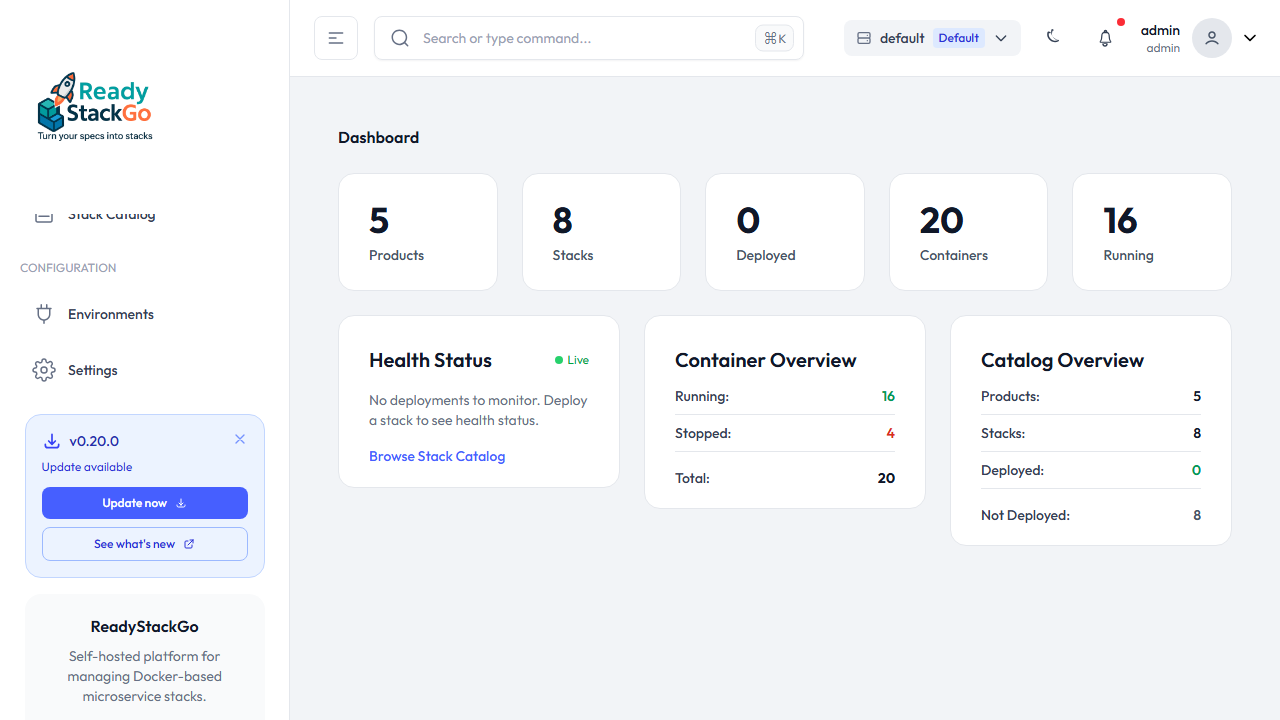
Section titled “Step 1: Recognize the Update Banner”When a new version is available, a banner automatically appears in the left sidebar below the navigation. The banner shows the available version number and two actions:
- Update now — Opens the update page and starts the update
- See what’s new — Opens the release notes on GitHub
Step 2: Start the Update
Section titled “Step 2: Start the Update”Click Update now. A dedicated update page opens showing the progress. The page displays the current and target version along with a spinner:
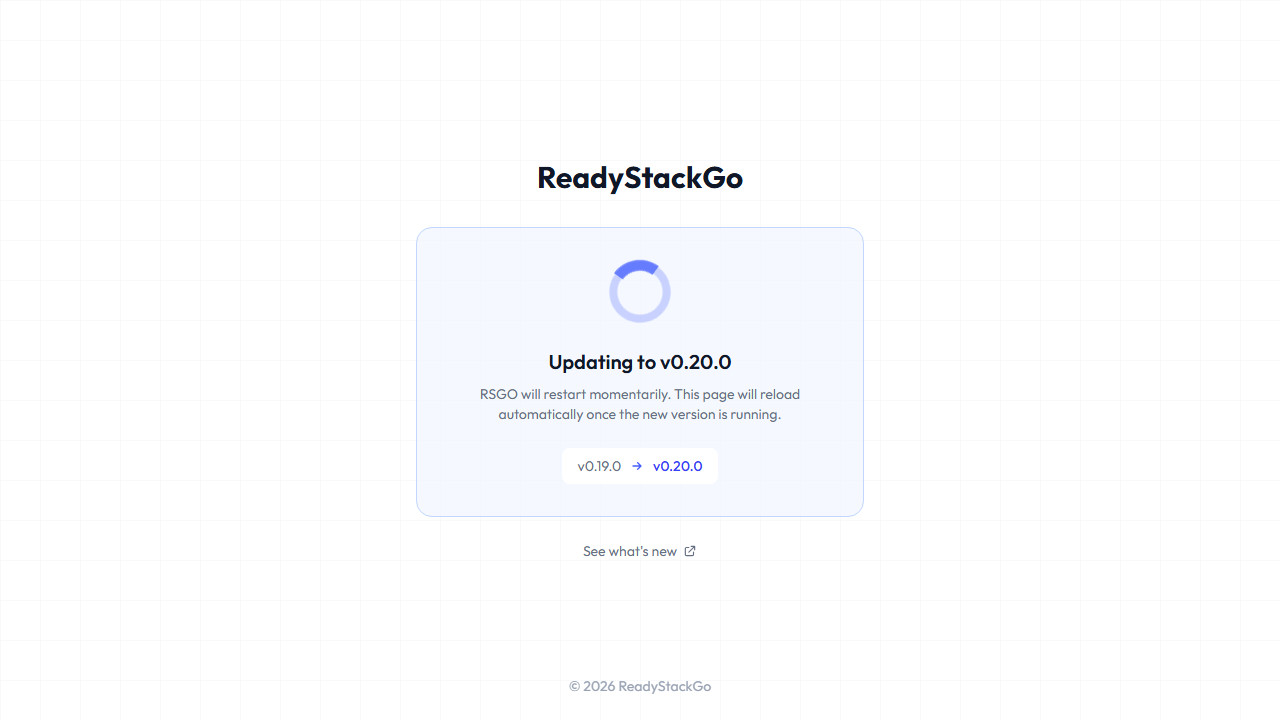
Behind the scenes, the following happens:
- The new image (
wiesenwischer/readystackgo:X.Y.Z) is downloaded - A new container with the same configuration is prepared
- A helper container (
rsgo-updater) takes over the swap - The old container is stopped and removed
- The new container is renamed and started
Step 3: Automatic Restart
Section titled “Step 3: Automatic Restart”During the container swap, RSGO is briefly unavailable. During this time:
- The helper container serves a maintenance page in the same design style
- The update page polls automatically every 3 seconds to check if the new server is ready
- Once the new version responds, it automatically redirects to the dashboard
You don’t need to do anything — just wait for the redirect to happen.
Error Handling
Section titled “Error Handling”If the update fails (e.g., because the image cannot be downloaded), the update page displays an error message with the option to retry:
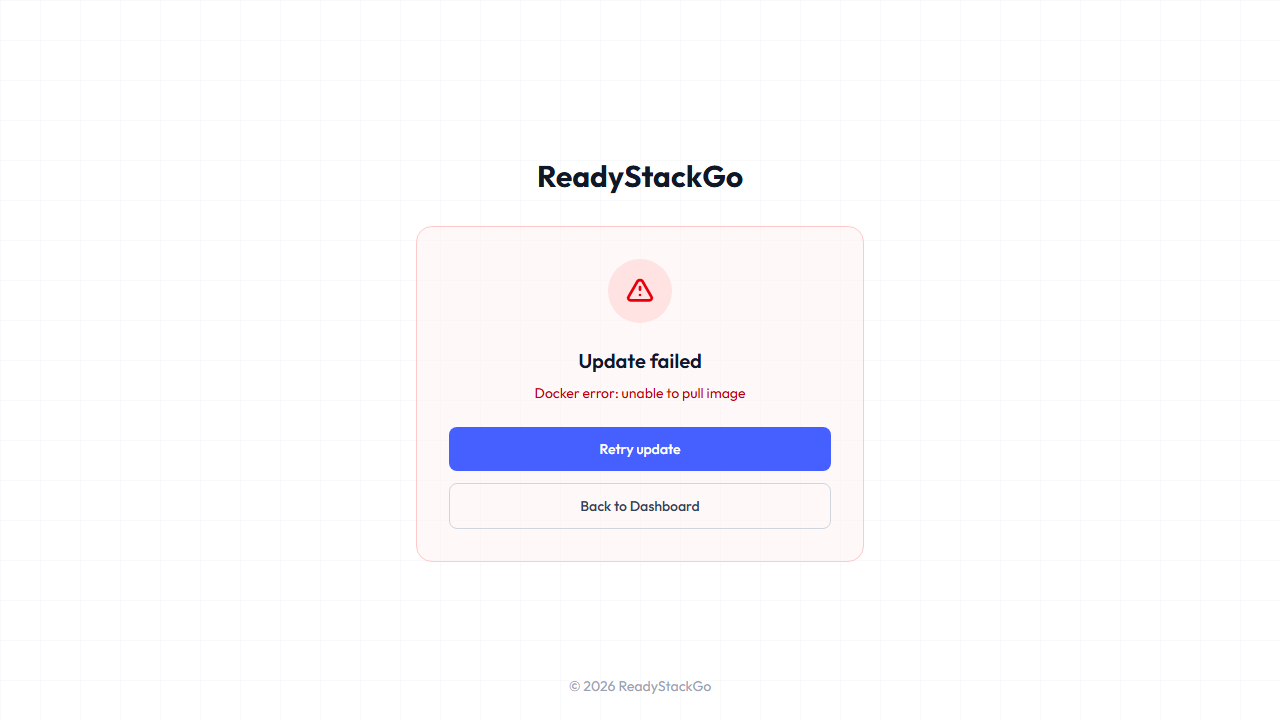
Common error causes:
| Error | Cause | Solution |
|---|---|---|
| Docker error: unable to pull image | No internet connection or image not found | Check network, verify version exists on Docker Hub |
| Docker error: connection refused | Docker socket not accessible | Verify /var/run/docker.sock is mounted as a volume |
| Update timeout | New container fails to start | Check container logs: docker logs readystackgo |
Technical Details
Section titled “Technical Details”Helper Container
Section titled “Helper Container”The update is performed by a separate helper container (wiesenwischer/rsgo-updater). It:
- Is based on
docker:cli(Alpine with Docker CLI) - Runs with
--network=hostandAutoRemove - Stops the old RSGO container, renames the new one, and starts it
- Serves a maintenance page in the RSGO design style during the swap
- Cleans itself up automatically when done
Version Detection
Section titled “Version Detection”RSGO detects new versions via the GitHub Releases API. The current version is embedded as assembly metadata at build time. Local development builds use 0.0.0-dev as the version number.